

GSE Smart IPTV Setup Guide
GSE Smart IPTV is a versatile player for iOS and Android with support for multiple playlist formats.
Step-by-Step Instructions
Download GSE Smart IPTV
Install GSE Smart IPTV from the App Store or Google Play Store.
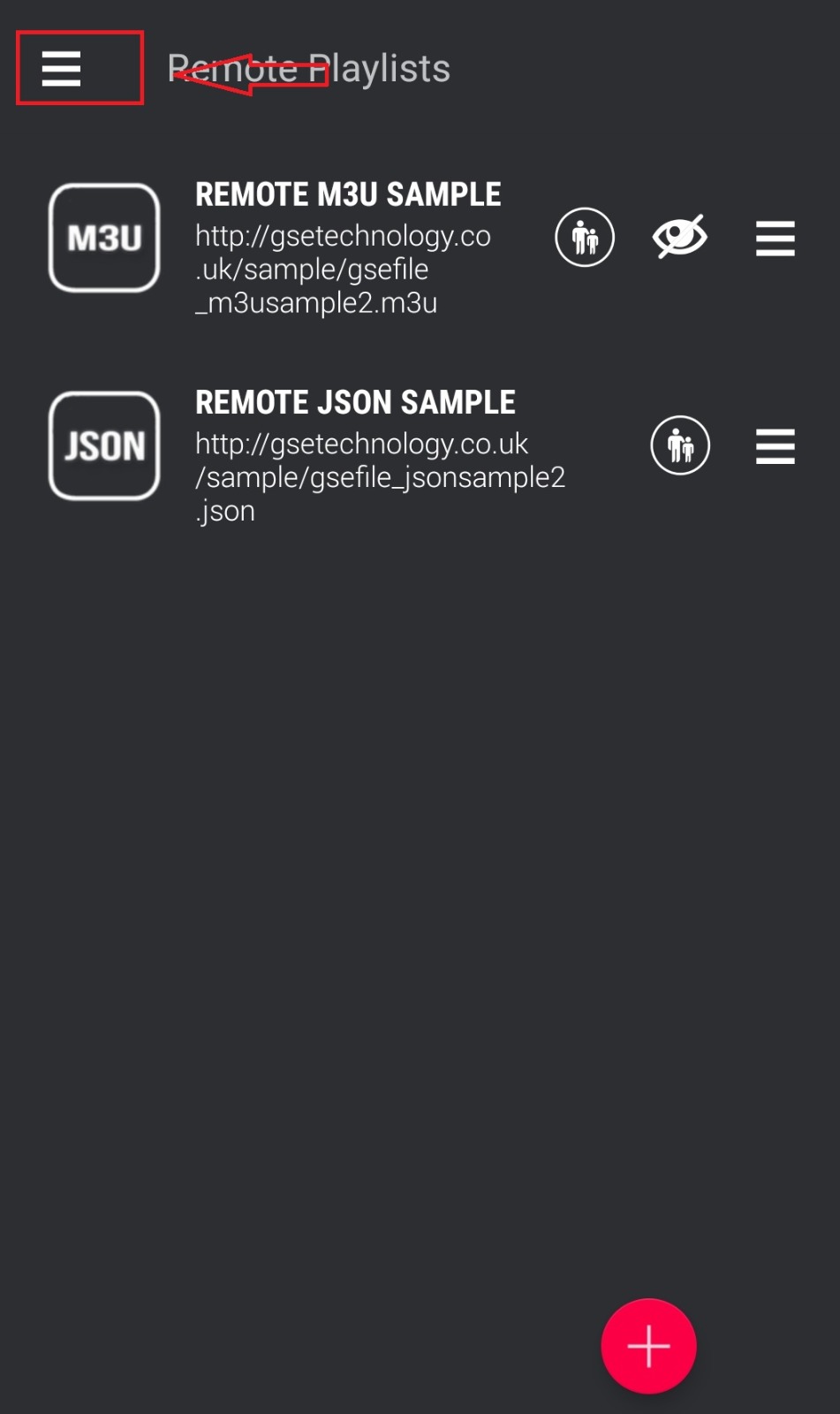
Open Remote Playlist
Tap the hamburger menu (☰) and select "Remote Playlists".
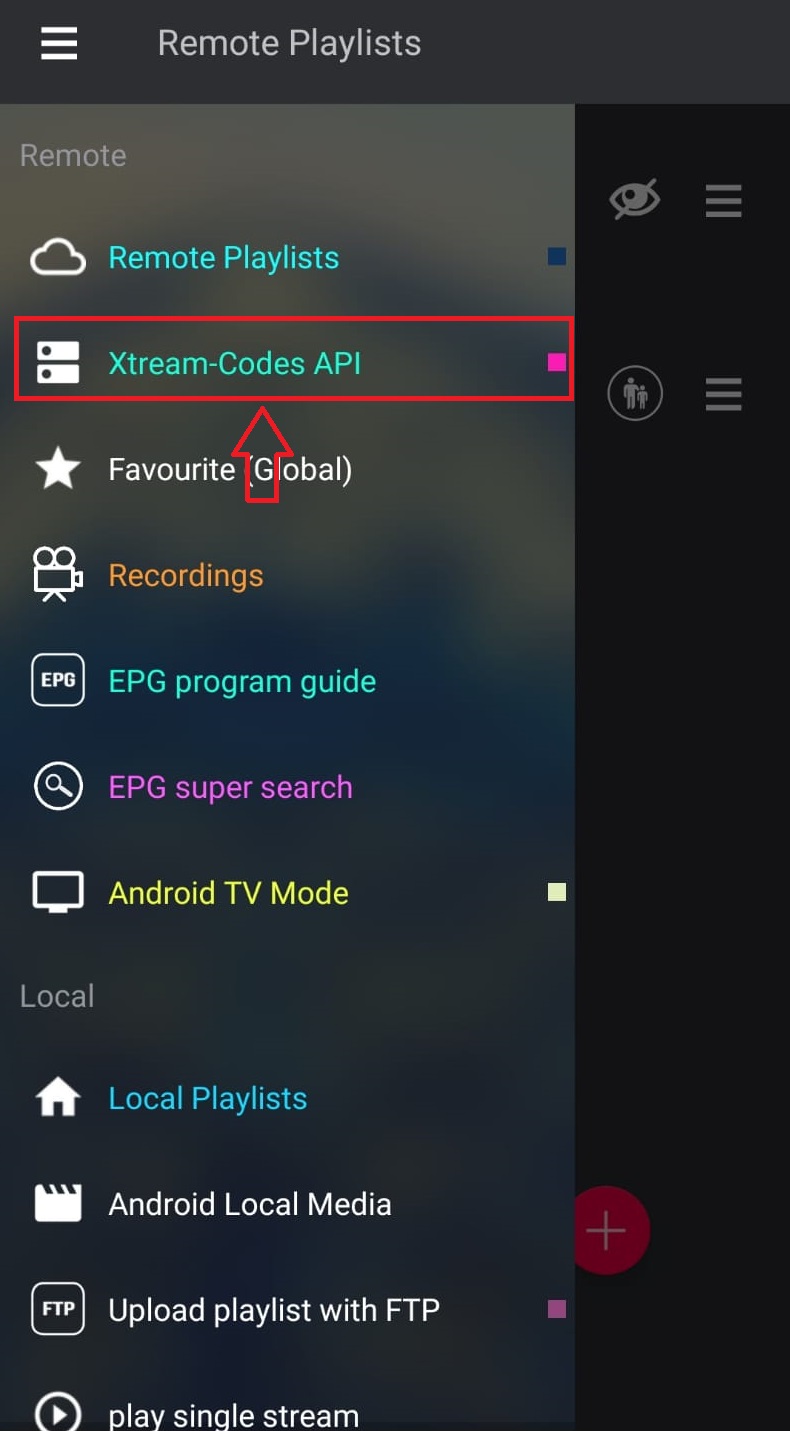
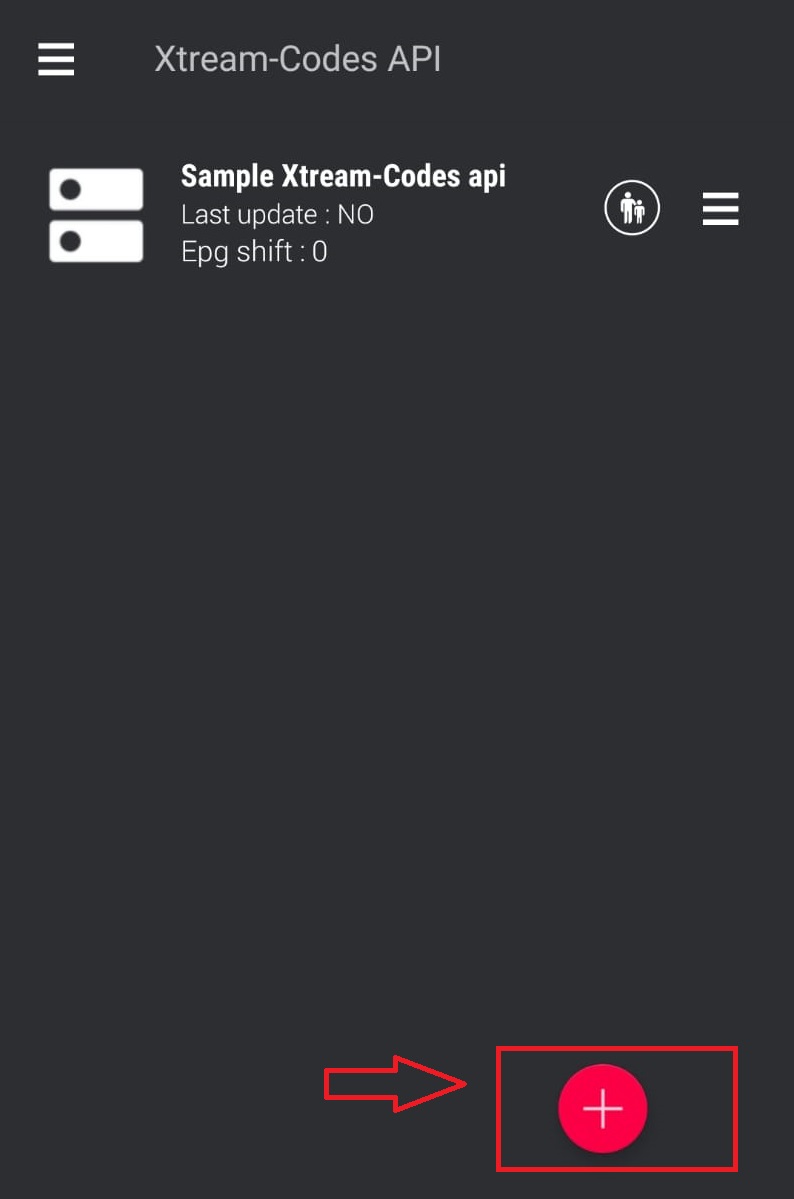
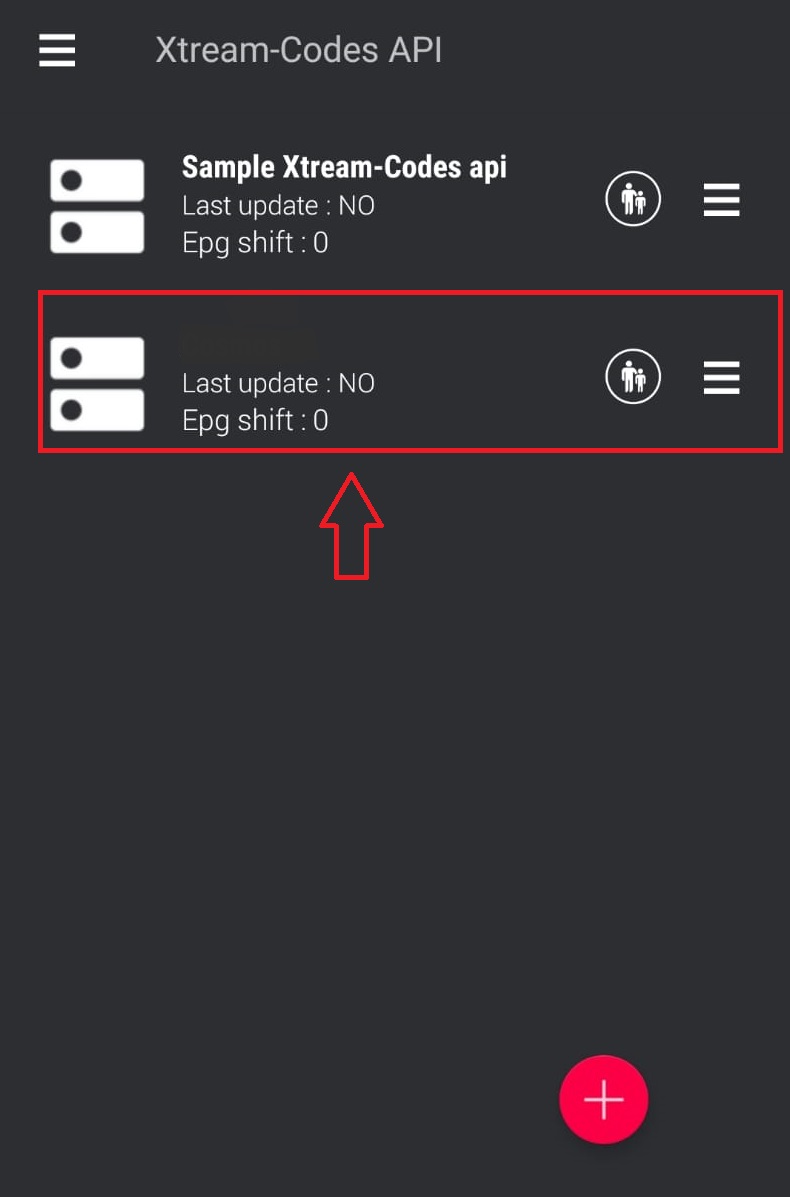
Add Xtream Codes API
Tap the "+" icon and select "Xtream Codes API".
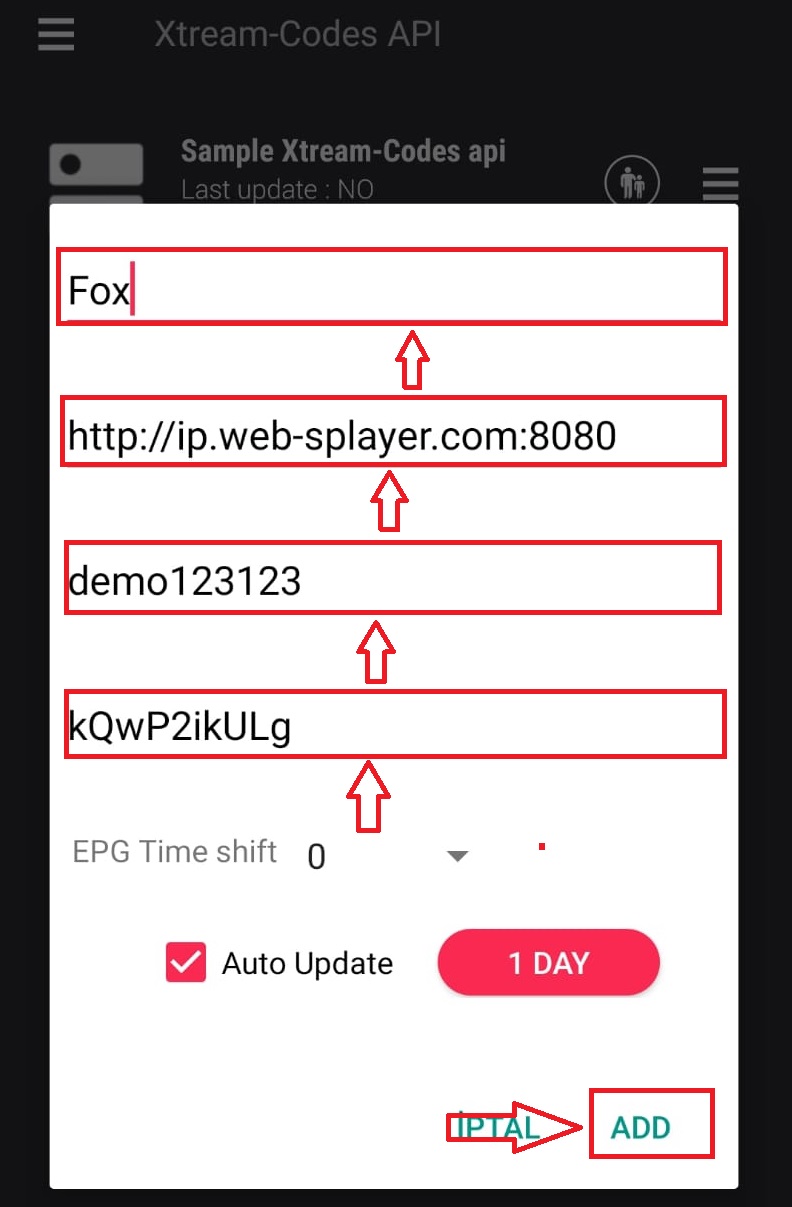
Enter Server Details
Enter your server URL, username, and password. Give it a name like "Cosmos IPTV".
Load Channels
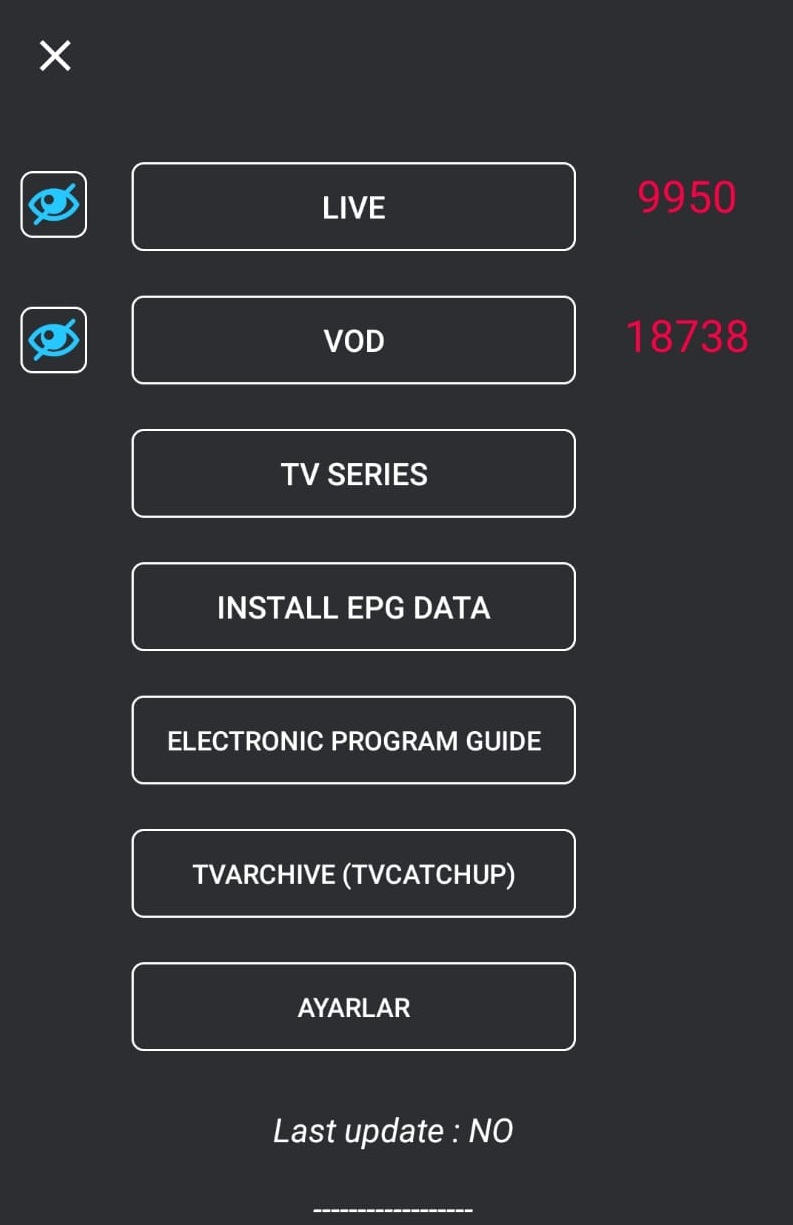
Tap to connect. The app will download your channel list and EPG data.
Start Watching
Browse your channels by category. Tap on any channel to start streaming. Use the favorites feature to save your preferred channels.
Setup Complete!
Your GSE Smart IPTV is now configured with Cosmos IPTV. Enjoy watching your favorite channels and content!
Pro Tips
- GSE supports both M3U and Xtream Codes formats
- Enable hardware decoding for better performance
- You can customize the player settings for optimal viewing
Need Help?
Our support team is available 24/7 to help you with the setup.


Don't Have a Subscription Yet?
Get started with a 24-hour free trial and experience premium IPTV on your GSE Smart IPTV.